Get Started with Your CoreGPS Tracker
Three steps and you are tracking: download the app, install your tracker, and sign in. This page walks you through each one.
Download the App Installation Guides
How Setup Works
Most customers are up and tracking the same day their tracker arrives.
Download the App
Get CoreGPS Manager for iPhone or Android. Geofence and power cut alerts only arrive through the app. Get the app.
Install Your Tracker
CoreOBD plugs straight into your vehicle's OBD port. CoreBasic and CoreTough wire into 12V or 24V power. Jump to the guide for your model.
Sign In and Track
Sign in with the temporary portal password we email you, then change it. It is separate from your shop account here on this website.
Download the CoreGPS Manager App
Live tracking, trip history and push alerts on your phone. Free with every CoreGPS tracker.
Install the app if you want alerts. Notifications for geofences, power cut, movement and other events are delivered as push notifications through the mobile app only. The browser portal does not send them, so a tracker without the app installed will track quietly but never tell you anything.
Prefer a bigger screen for maps and trip history? The full portal runs in any browser at track.coregps.com.au, using the same login as the app.
Signing In
Your tracking login is separate from your shop account. This catches people out, so it is worth two minutes.
Your tracking login
We email you a temporary tracking portal password separately after your order. Use it to sign in to either the CoreGPS Manager app or track.coregps.com.au.
Please change it once you are signed in. Setting your own password means the one sitting in your inbox no longer opens your account.
Cannot find the email? Check your junk folder, then contact us and we will resend it.
Your shop account
The account you created on this website is for orders, invoices and renewals only. It will not sign you in to the tracking app or portal.
Two different passwords, two different jobs. Changing one does not change the other.
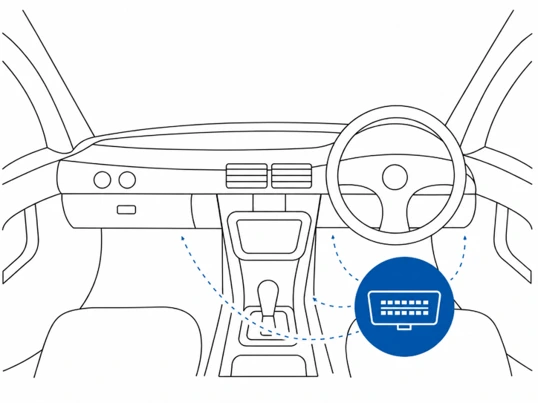
CoreOBD: Plug It In
No wiring, no tools, no vehicle downtime.
- Find the OBD-II port. It is under the dash on the driver's side in most cars, utes and vans sold in Australia since 2006, usually above the pedals or near the fuse panel.
- Push CoreOBD firmly into the port. It only fits one way.
- Start the vehicle. Your tracker is usually online within a minute.
Moving vehicles? Unplug it and plug it into the next one. No reinstall needed.
CoreBasic: Two Wires
Works on 12V and 24V systems (10 to 30V input).
- REDPower. Connect to battery positive or a constant 12V/24V supply. If fitting a fuse is required, 3A is a suitable size.
- BLACKGround. Connect to battery negative or a solid chassis ground.
That is the whole install. Two connections and the tracker is powered.
Mount the tracker out of sight and away from heat. See mounting your tracker below for orientation and placement before you fix it in place.
Not comfortable with 12V wiring? Your preferred auto electrician or caravan technician can fit CoreBasic in well under an hour.
CoreTough: Two Wires
Works on 12V and 24V systems (10 to 30V input).
- REDPower. Connect to battery positive, 10 to 30V DC.
- BLACKGround. Connect to battery negative.
CoreTough arrives with both leads pre-terminated, so the terminals go straight onto the battery.
The sealed housing is built for motorbikes, machinery and marine. Keep it away from hot or moving parts. See mounting your tracker below for orientation and placement before you fix it in place.
Not comfortable with wiring? Your preferred auto electrician or installer can fit CoreTough quickly.
Mounting Your Tracker
Applies to CoreBasic and CoreTough. Where you put the tracker decides how well it works.
Keep it clear of metal
Metal above or around the tracker blocks the GPS and mobile signal. Depending on how much is in the way, that either reduces accuracy and reporting, or stops the tracker working altogether.
Mount it on or underneath plastic, timber, ply or fibreglass.
Mind the orientation
Mount the tracker with the printed text facing up towards the sky. That is the orientation the antennas are designed for.
Where that is not possible, mounting it flat against a vertical surface such as a wall or cabinet side is fine, with the text facing away from the mounted surface. Avoid mounting it with the text facing down.
Fix it down firmly
Secure the tracker with mounting tape or cable ties so it cannot move about, slide around or swing on its own wiring. A tracker left loose will strain the connections it is wired to and can rattle or come free on rough roads.
Note: CoreTough comes with mounting tape pre-attached from the factory.
Not sure where to put it? Contact us and we will talk you through good spots for your vehicle, caravan or machine.
Check It Is Working
Sign in to the app after installation. Your tracker should show as online within a few minutes of powering up. The first GPS fix can take a couple of minutes under open sky, so give it a short drive and watch your first trip appear.
While you are in the app, allow notifications when prompted. That is what lets geofence, power cut and movement alerts reach your phone.
Need a Hand?
If anything is not working the way you expect, or you are not sure where to mount your tracker, get in touch. You will talk to someone in Australia who knows the hardware.